
How to Create a Google Business Profile and Get on Google Maps
By Rickus Jansen, Co-Director at WebConsultants·Published
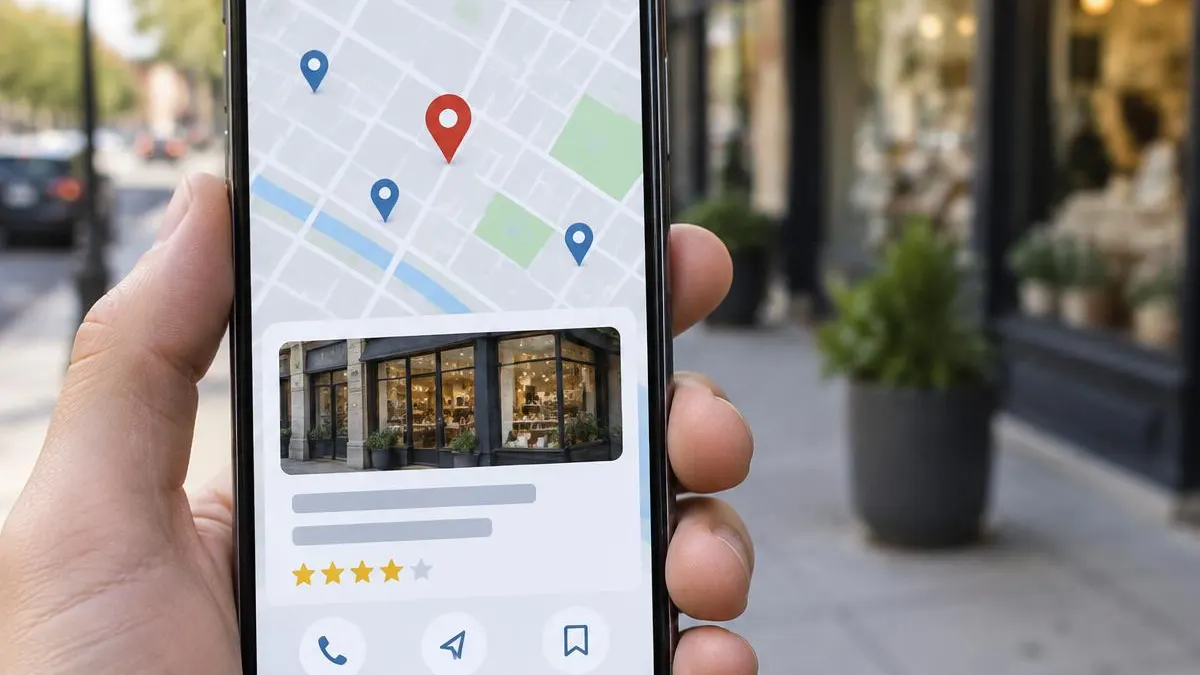
When someone searches for a service near them, the map results are often the first thing they see. To appear there, your business needs a Google Business Profile. This guide walks you through how to create one, add your business to Google Maps and get it verified.
A Google Business Profile is the free listing that shows your business name, location, hours, reviews and contact details on Google Search and Google Maps.
What Is a Google Business Profile?
Your Google Business Profile, previously called Google My Business, is how your business appears in Google’s local results and on Google Maps. It lets customers call you, get directions, visit your website and read reviews without leaving Google. For local service businesses, it’s often one of the most valuable marketing assets they have.
Before You Start
Gathering a few details first makes setup smoother. Start by checking that your business is eligible under Google’s guidelines for representing your business. In short, your business needs to make in-person contact with customers during its stated hours, either at your premises or at the customer’s location.
Then prepare the following:
- Your real business name, exactly as customers see it on your signage and paperwork
- Your physical address, or the areas you serve if you travel to customers
- Your main business phone number and website address
- Your business hours
- The primary category that best describes what you do
Use a Google account that belongs to the business, not a personal account or one owned by a supplier. You can add team members or an agency as managers later, but ownership should always stay with you.
How to Create a Google Business Profile, Step by Step
Google’s Business Profile setup guide outlines the process. Here’s how it works in practice:
- Sign in and start setup. Sign in to your business Google account, open Google Business Profile and choose the option to add your business to Google.
- Enter your business name. If a matching listing already exists, Google will suggest it. Claim that listing rather than creating a duplicate.
- Choose your primary category. Pick the most specific category that describes your core service. You can add secondary categories later.
- Add your location. If customers visit your premises, enter your address. If you travel to customers and don’t serve them at your address, add your service areas and hide your address.
- Add your contact details. Enter your phone number and website address.
- Verify your business. Choose one of the verification options Google offers and follow the on-screen steps.
How to Add Your Business to Google Maps
Creating a Business Profile is what puts your business on Google Maps, but you can also start directly from Maps. According to Google’s help article on adding or claiming a Business Profile, you can search for your address in Google Maps and select the option to add your business, or right-click anywhere on the map and add it from there.
If your business already appears on Maps but nobody has claimed it, search for your business name, open the listing and select the option to claim it. Claiming an existing listing means you keep any reviews it has already collected.
Verifying Your Profile
Verification confirms to Google that you own or manage the business, and it’s what makes your profile eligible to show on Google. Google decides which verification methods are available for each business. Options can include a phone call, text message, email or a video recording that shows your location, signage or tools of the trade.
Make sure the details you submit match what Google can see during verification, such as your signage, branded vehicles or business documents. Inconsistent details are a common reason verification fails.
How to Optimise Your Profile After Setup
Creating the profile is only the first step. A complete, active profile gives Google more reasons to show you and gives customers more reasons to choose you.
- Complete every relevant field, including services, business description, opening hours and attributes.
- Add real photos of your team, premises, vehicles and completed work.
- Ask for reviews consistently and reply to every one, positive or negative. BrightLocal’s Local Consumer Review Survey of US consumers found that 97% read reviews for local businesses.
- Keep your details consistent everywhere your business is listed online, from your website to directories.
- Link to the right page, usually your homepage or a dedicated location page.
Common Mistakes to Avoid
- Adding keywords or locations to your business name that aren’t part of your real name
- Using a PO box or virtual office as your address
- Creating more than one profile for the same location
- Letting a supplier or former employee own the profile
- Setting up the profile and never updating it again
Some of these mistakes can lead to your profile being suspended, so it’s worth getting them right from the start.
How Your Profile Fits Into Local SEO
Your Google Business Profile is one part of local SEO. Your website, reviews, business listings and the consistency of your details across the web all influence how visible you are in local results.
Your profile also works best when it links to a fast, clear website that confirms the same information. If your website needs work, our website design team builds sites with local SEO in place from the start.
If you’d like help setting up or improving your profile, Google Business Profile optimisation is part of our SEO services. Book a consultation and we’ll look at where your business stands.
Related articles

Contact WebConsultants
Need help with your Google Business Profile? Get in touch with our team.
Contact Number: (082) 459-9946
Email: office@webconsultants.co.za